Set "Buy milk" for 6 p.m. and you'll probably be in a meeting at 6, then walk right past the store later with no alert at all. Some tasks depend on where you are more than when. iPhone Reminders can alert you when you arrive at or leave a place. This post covers practical examples, how to set it up, and what to check when the alert doesn't come.
Tasks that fit a location trigger
When arriving — a grocery list
Pick the store you stop at on the way home and choose "Arriving." Write the reminder so you can act on it right there, like "Groceries: milk, eggs, detergent." The list shows up as you get close, so you're not digging through notes in the parking lot.
Other good fits:
- Arriving at work: "Reply about yesterday's documents"
- Arriving at your parents' place: "Return the borrowed book"
- Near the pharmacy: "Pick up prescription"
When leaving — things to take with you
Set home as the place and choose "Leaving," and you'll get an alert around the time you head out. It suits things that are easy to forget at the door: "Umbrella, lunch, return package." You can also set your office with "Leaving" for "Take the laptop charger."
One thing to know: a leaving alert may arrive after you're already out the door. If something really has to be grabbed from inside, add a time-based alert as well.
Before you start
A location trigger only works if your iPhone can determine where you are. Check these first:
- Location Services is on: Settings > Privacy & Security > Location Services.
- Reminders has location access: in the app list on the same screen, make sure Reminders isn't set to "Never."
- Notifications are allowed: Settings > Notifications > Reminders — Allow Notifications should be on.
Setting a location in Apple Reminders
These are the steps from Apple's support article (Use Reminders on your iPhone or iPad). Labels can vary slightly by iOS version.
- Create a new reminder in the Reminders app, or open an existing one.
- In the toolbar above the keyboard, tap the Location button.
- Choose a suggested place (Home, Work, Car, and so on), or tap Custom and search for a location.
- Choose Arriving or Leaving.
- Drag the circle (perimeter) on the map to make the area larger or smaller.
- Tap Done to save.
If Home or Work doesn't appear as a suggestion, check whether your address is filled in on your own card in Contacts. Either way, you can always search for the address under Custom.
Choosing the place and the radius
- Too small an area and your iPhone may notice late that you've entered it, or miss it. Covering the surrounding block rather than a single entrance usually works better.
- Too large an area and you'll get alerted just for passing nearby. If the store is on your daily route, shrink the circle a bit.
- Several tasks at one place? Consider combining them. One "Arrive at grocery store" reminder listing everything means one alert instead of five.
- Your iPhone decides when you've arrived or left, so there's no guarantee about exactly where or how quickly the alert appears. If timing matters, add a time-based alert too.
Setting a location alert in Plandy
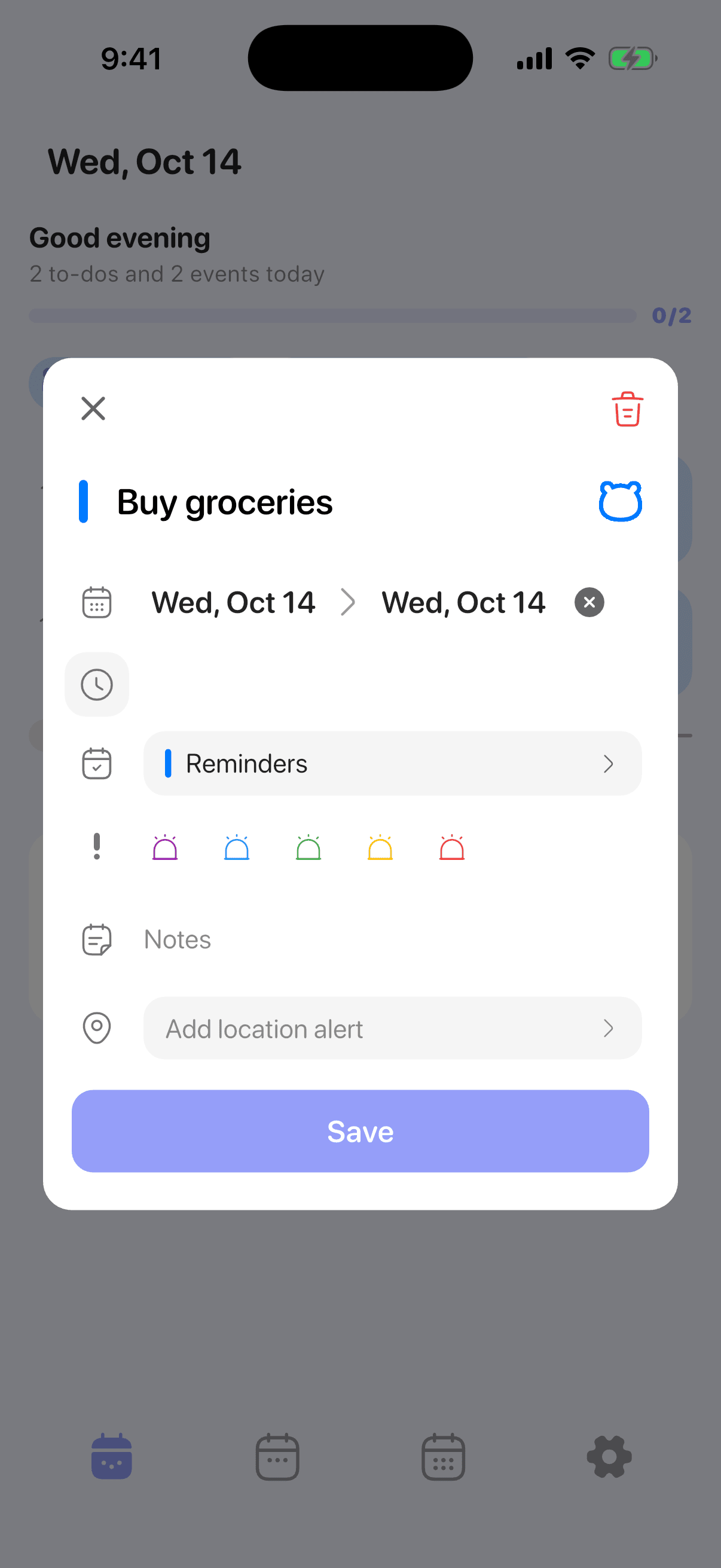
- When creating a new reminder, tap the down arrow at the bottom of the entry screen to show more options. For an existing reminder, tap it to open its details.
- Tap Add location alert.
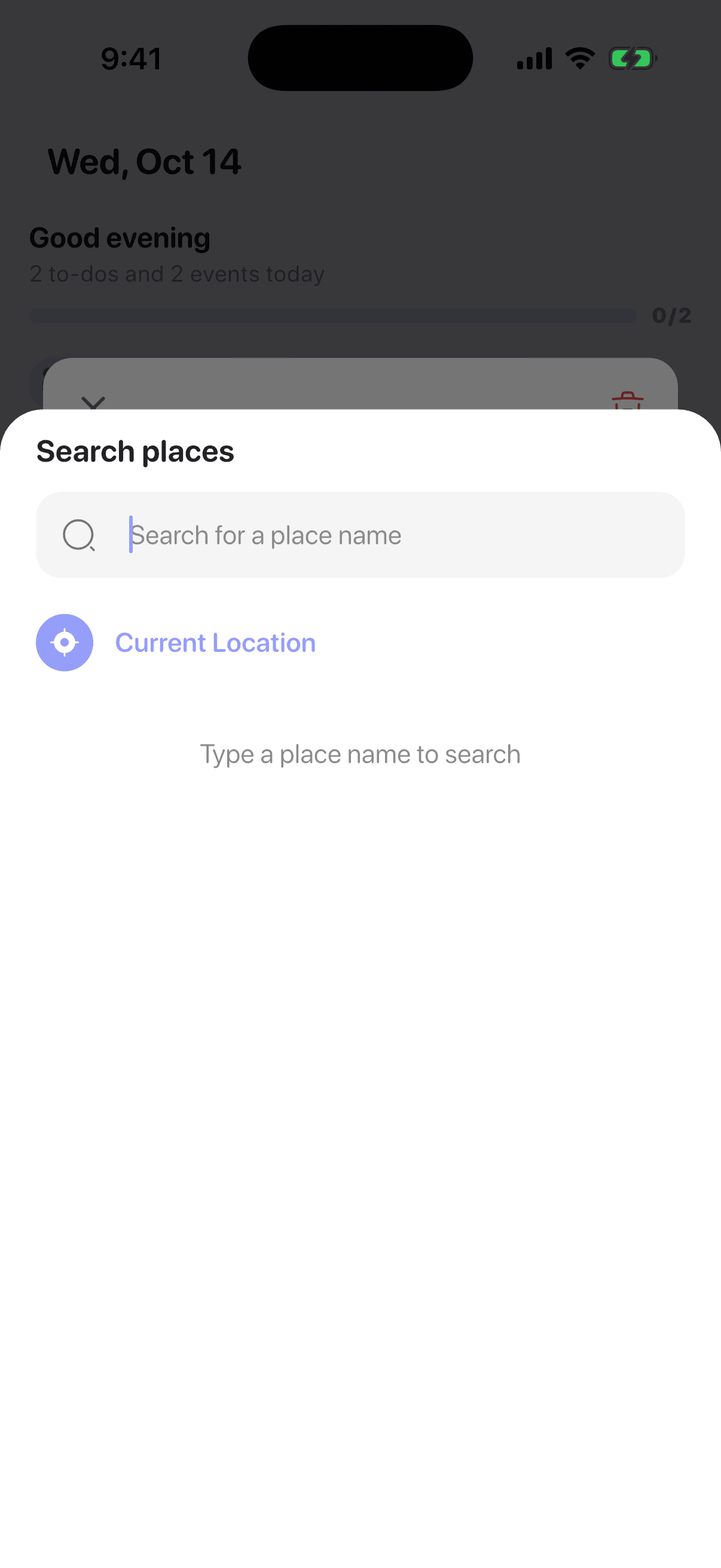
- On the Search places screen, type a place name and pick a result. To use where you are right now, tap Current Location.
- Choose When arriving or When leaving.
- Check the map preview and drag the Radius slider to set the area, from 100 m up to 2 km.
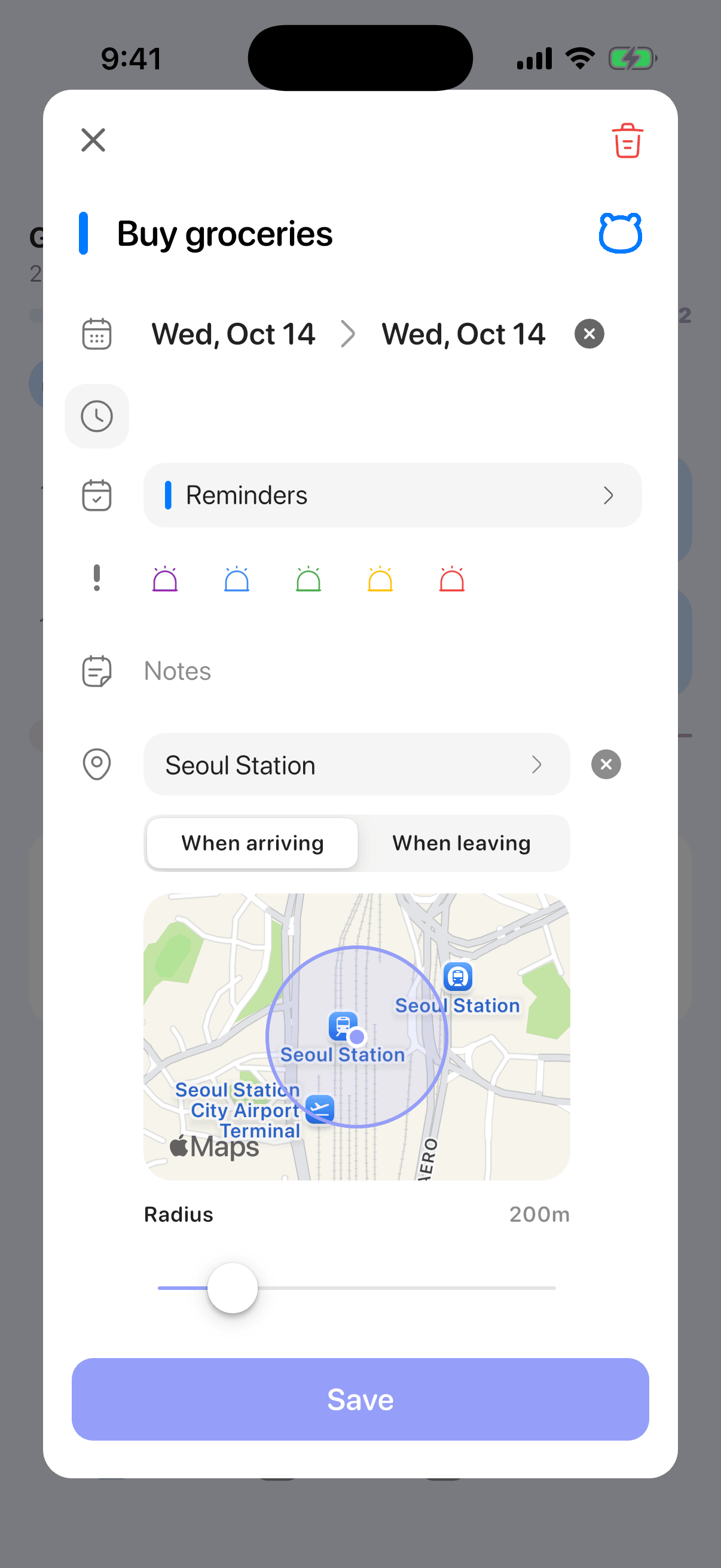
Arriving example: 200 m radius. This is a demo setting, not a recommended value.
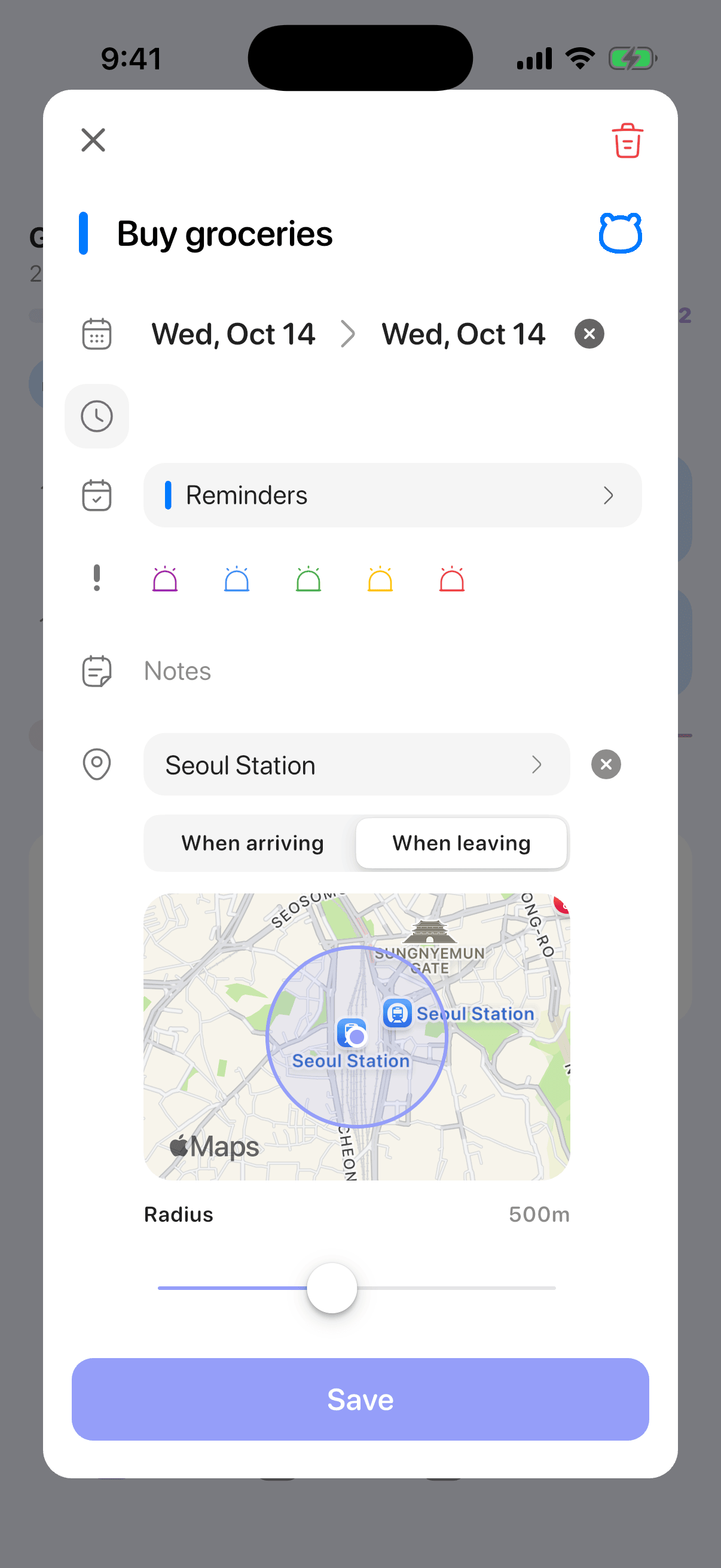
Leaving example: 500 m radius. Adjust the area to fit your place and route.
- Save the reminder.
To remove the place, tap the X button on the right of the location row.
The first time you tap Current Location, you'll be asked to allow location access. If you declined, you can turn it back on in Settings > Plandy > Location.
Adding a location alert is a Pro subscription feature. Without a subscription, a crown icon appears next to Add location alert, and tapping it opens the subscription screen. Creating reminders and setting their date, time, and list stays free.
When the alert doesn't arrive
Work through this list in order:
- Location Services and per-app permission: Settings > Privacy & Security > Location Services should be on, and Reminders (and Plandy, if you set the location there) shouldn't be set to "Never."
- Notification settings: Settings > Notifications > Reminders — check that notifications are allowed and shown on the Lock Screen and in Notification Center.
- Focus: an active Focus can silence Reminders alerts. Check whether Reminders is an allowed app in that Focus.
- Place and radius: on the map, confirm the searched address landed on the right spot and the area isn't too tight.
- Already inside the area: if you set "Arriving" while already inside the circle, you may need to leave and come back before it counts as an arrival.
- Completed reminders: a reminder that's already marked complete won't alert.
If it still doesn't work, restart your iPhone, then open the reminder and check that its location permission and address are still correct.
Related guides
- Adding and Editing Reminders: creating reminders in Plandy and organizing them by date, priority, and list
- When Alerts Don't Arrive — A Checklist: checking permissions and iPhone notification settings in one pass